Tickets & Approvals
Tickets
The Tickets page lists every ticket in your project with filtering, sorting, and pagination (25 tickets per page). Use filters to zero-in on what matters:
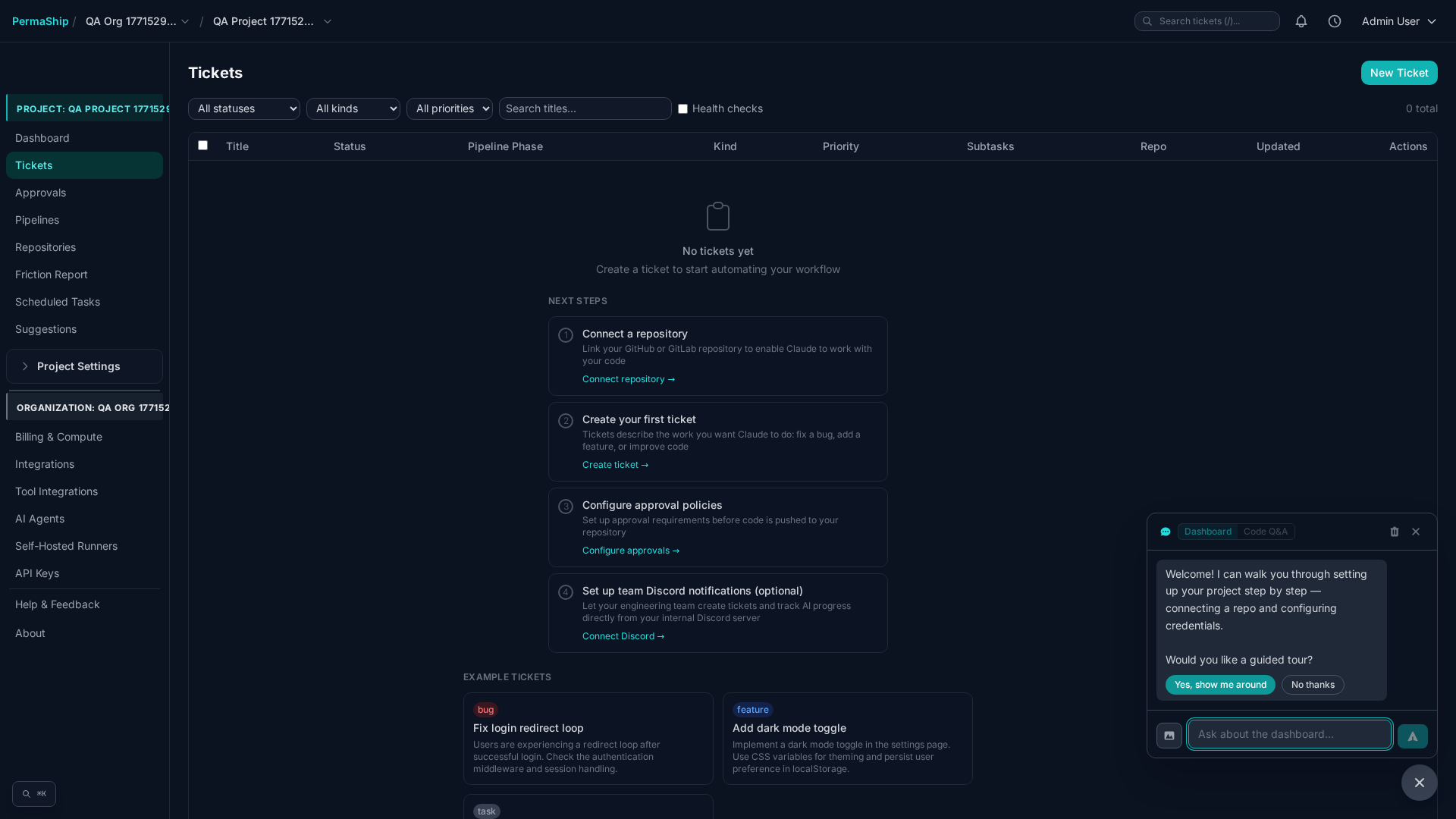
- Status —
new,triaging,planning,implementing,ci_running,ready_for_review,failed,blocked - Kind — Task, Bug, Feature, Improvement
- Priority — P1 through P5
- Search — free-text search across title and description
Keyboard shortcuts: Press j / k to move between rows and Enter to open the selected ticket.
Creating a Ticket
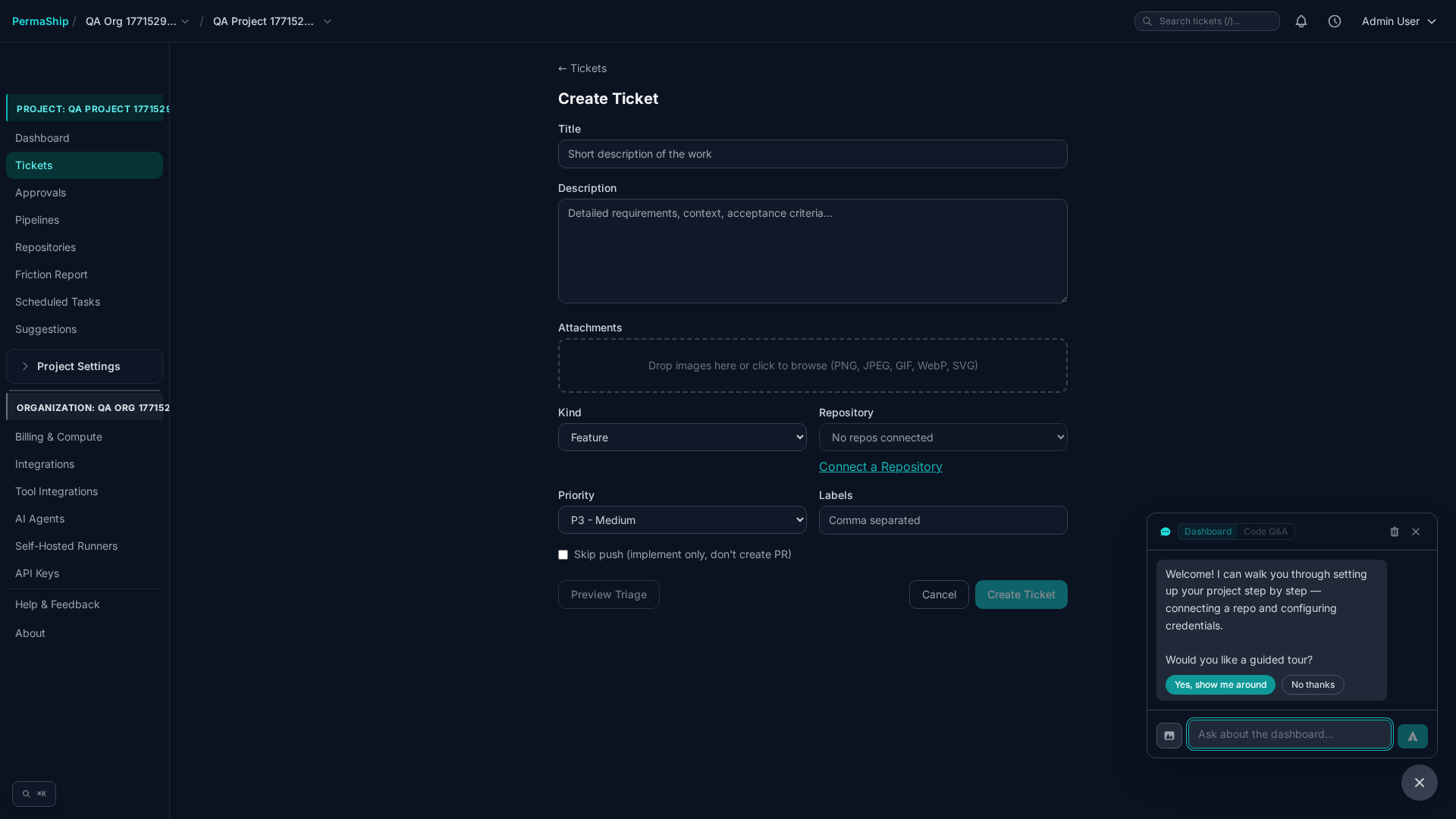
Click New Ticket to open the creation form. Fill in the fields below and submit.
| Field | Required | Description |
|---|---|---|
| Title | Yes | Short summary of the work (max 200 characters) |
| Description | Yes | Detailed description of the task, bug, or feature |
| Kind | Yes | Feature, Bug Fix, Task, Refactor, Documentation, or Test |
| Repository | Yes | Which connected repo the work targets |
| Priority | No | P1–P5; defaults to P3 when omitted |
| Labels | No | Comma-separated tags for categorisation |
| Skip Push | No | Implement the change locally without opening a pull request |
Ticket Detail
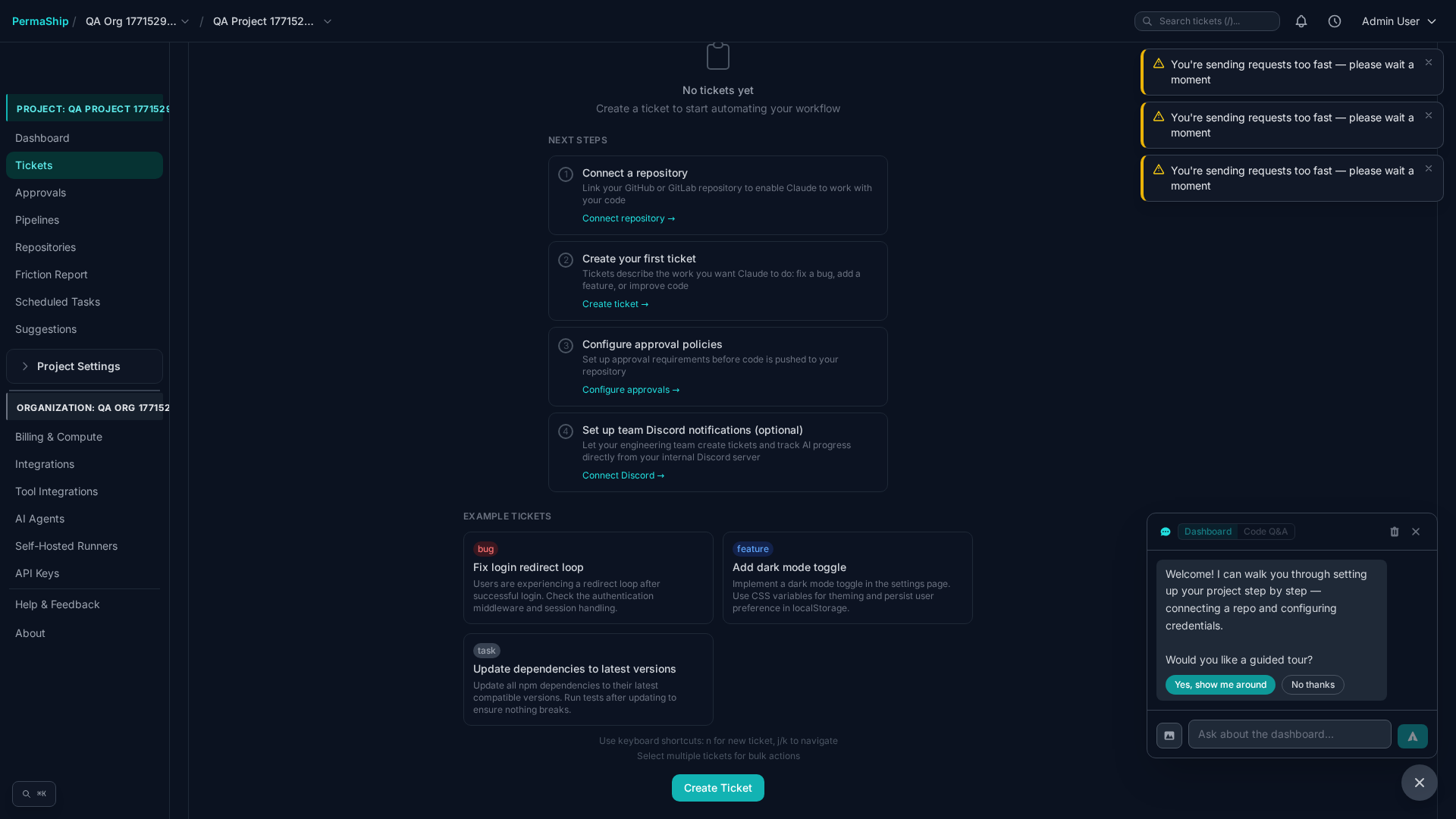
Opening a ticket takes you to the Ticket Detail view, which auto-refreshes every 10 seconds so you always see the latest state.
Header
The header shows the ticket title, current status badge, kind, priority, repository, and creation date. Action buttons let you Edit, Retry, Fail, or Delete the ticket.
Pipeline Stepper
A visual stepper tracks the ticket through the autonomous pipeline:
- Triage
- Plan
- Implement
- CI
- Review
If a step fails, you can retry from that step without restarting the entire pipeline.
Conversation Thread
The conversation thread merges job output, human requests, and comments into a single timeline. When the agent asks a question or requests approval, you can Resolve or Expire the pending request directly from the thread.
Approvals
The Approvals page is a centralized inbox for every pending human request across all tickets. It auto-refreshes every 10 seconds.
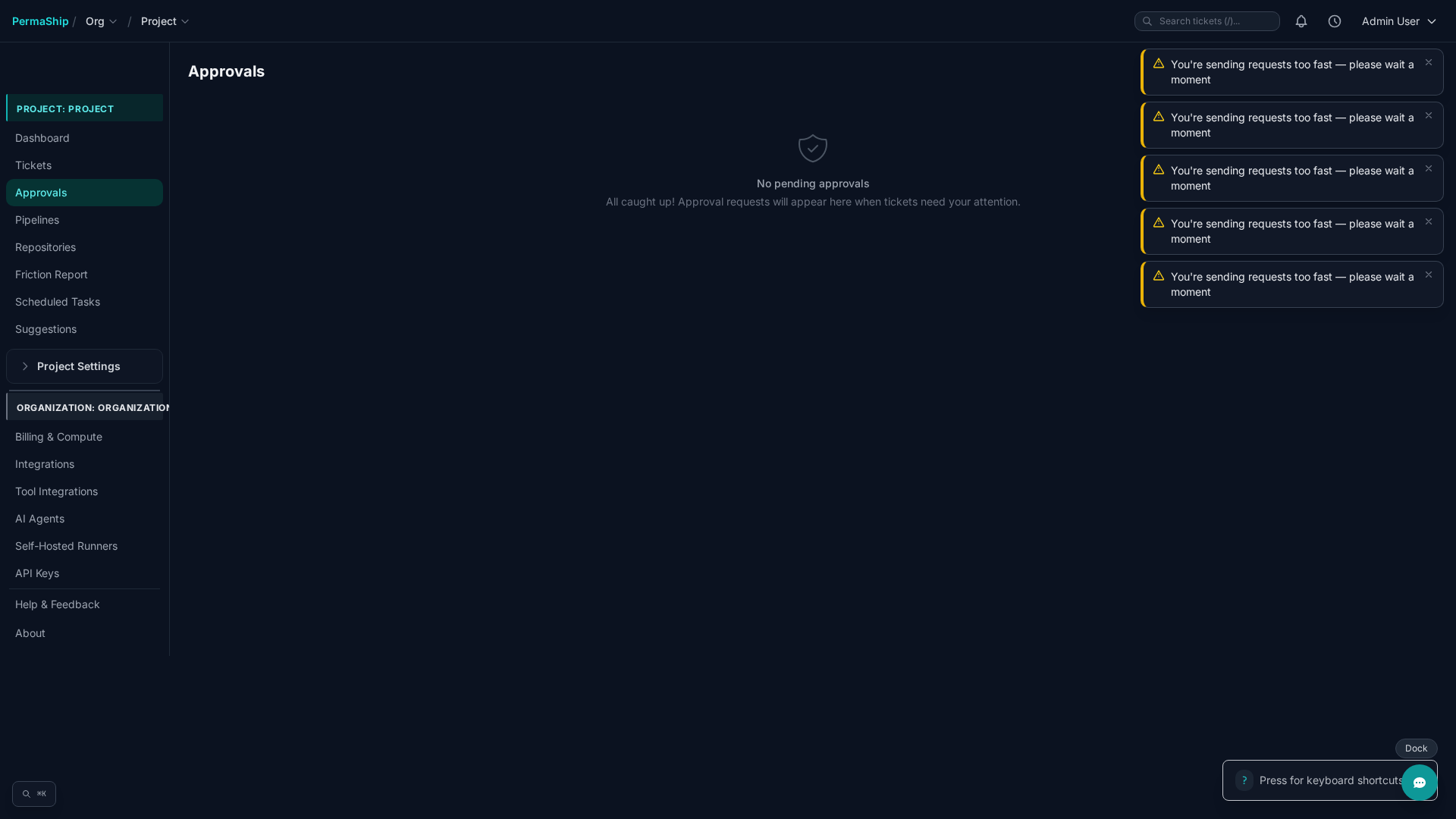
Cards are sorted oldest-first and display the request type, wait time (with urgency indicators), and a prompt preview.
Approval Requests
For approval-type requests you can:
- Quick Review — jump to the ticket detail for full context
- Approve — allow the agent to proceed
- Reject — deny the action with optional feedback
- Expire — dismiss the request without action
Question & Clarification Requests
For question or clarification requests you can:
- Quick Review — jump to the ticket detail
- Send a Response — type your answer in the input field and click Send
Approval Policies
Approval policies let you control when human approval is required. Configure them under Settings > Add Policy.
Available rules:
- Require approval before push — the agent must get a human sign-off before pushing code or opening a PR
- Auto-approve if max lines changed — skip approval when the diff is small (e.g. under 50 lines)
- Excluded paths — glob patterns for paths that never require approval (e.g.
docs/**) - Max total change size — upper bound on the overall diff size the agent may produce without approval