Settings & Administration
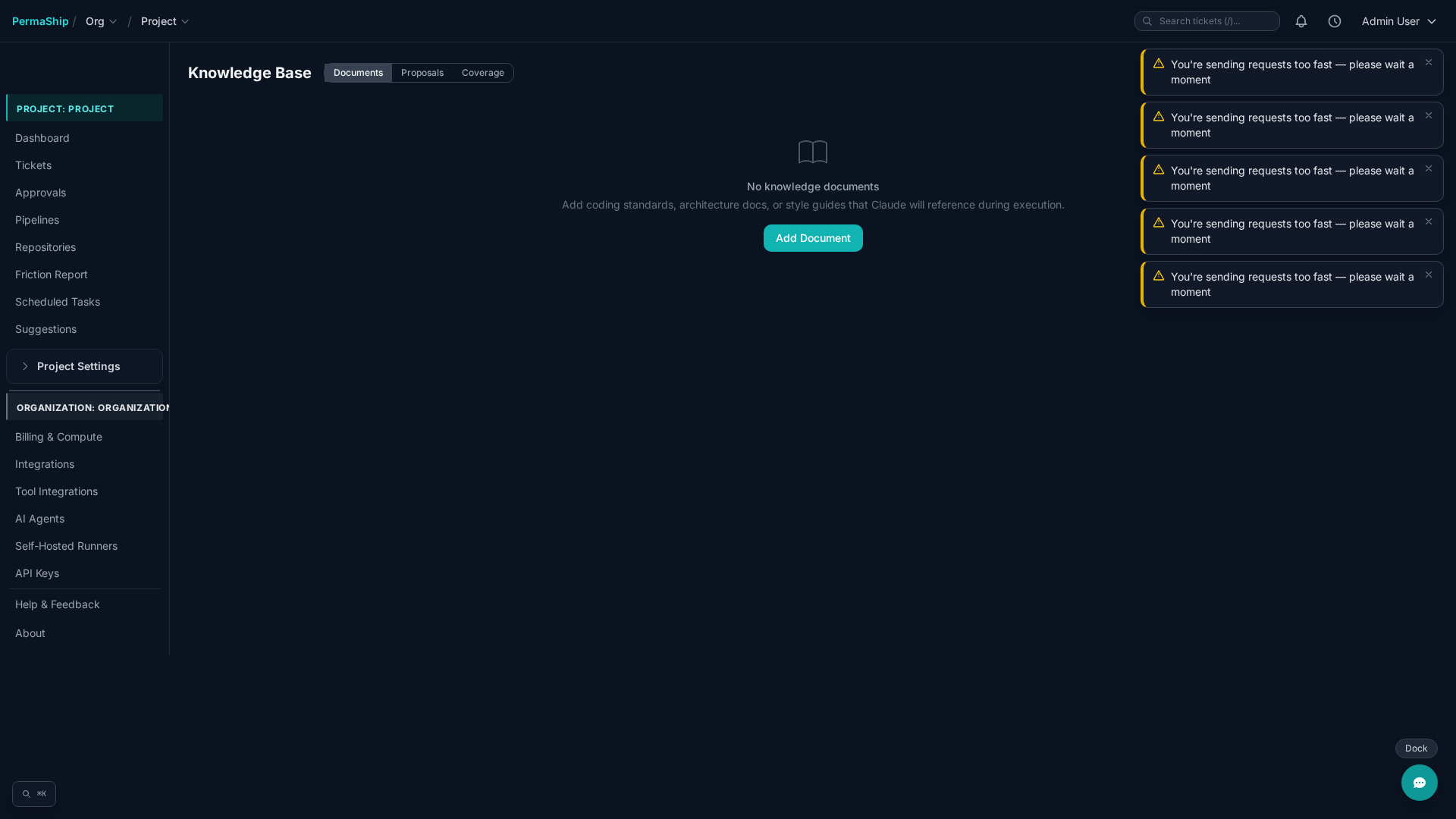
Knowledge Base
Store reference documents that PermaShip reads during execution — coding standards, architecture docs, style guides, and API references.
Click Add Document to create an entry. Provide a title, content (any text format), and an optional source label.
Documents are versioned automatically — each edit increments the version number.
Each document appears as a card showing its title, source badge, version, content preview, and last updated timestamp. Click a card to view the full document, then Edit or Delete as needed.
Project Rules
Project rules are instructions injected into every AI job. Define them at the Org or Project level under Settings.
Examples:
- "Always use the internal @company/logger package for all logging."
- "Database queries must use Drizzle and never raw SQL strings."
- "All new API endpoints must include OpenAPI documentation annotations."
- "Always use conventional commits."
- "Tests must use the @fast-check library for property-based testing."
Rules ensure PermaShip knows your internal systems and conventions, producing code that follows your team's standards from the start.
Git Credentials
Manage Personal Access Tokens (PATs) for GitHub and GitLab. Credentials follow a hierarchy:
- Project-level (green "Custom" badge) — used first
- Org-level (blue badge) — fallback
- Platform default (gray badge) — system fallback
For each provider you can set an override, rotate the token, or remove the override to fall back to the next level.
Project Settings
A key-value store for custom project configuration. Values stored here are accessible to pipeline steps during execution.
Members & Roles
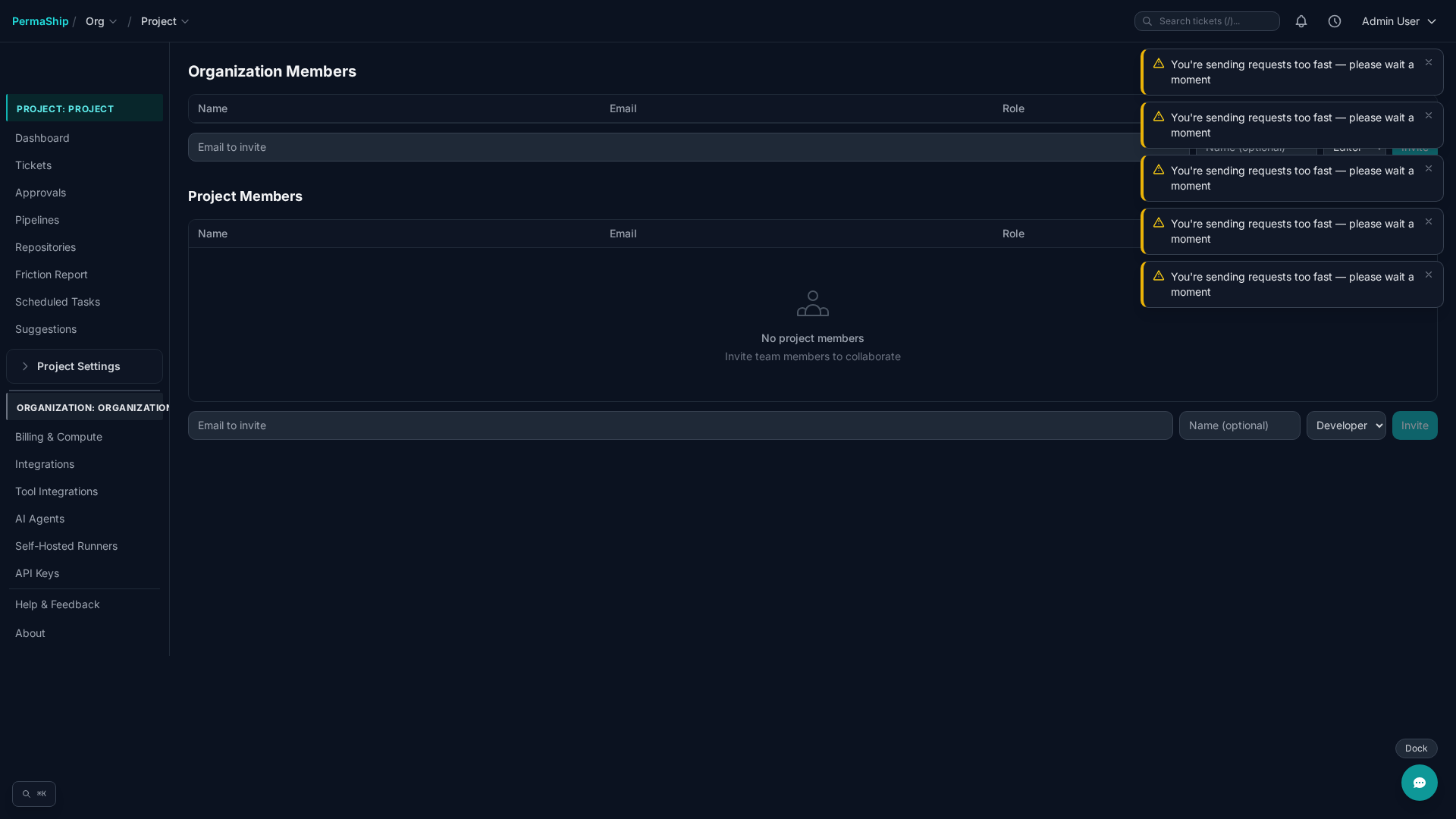
Organization Members
Invite members by email and assign a role: Owner, Admin, Editor, or Viewer. If the invited email doesn't have an existing account, one is auto-created with a temporary password — copy it immediately as it will not be shown again.
Project Members
Project-level access is managed separately from organization membership. Each project member is assigned one of the following roles:
| Role | View | Create Tickets | Manage Settings |
|---|---|---|---|
| Viewer | Yes | No | No |
| Developer | Yes | Yes | No |
| Admin | Yes | Yes | Yes |
API Keys
Create API keys for programmatic access to the PermaShip API. Enter a name and select one or more scopes:
read— Read-only access to tickets, projects, and statswrite— Create and update tickets, manage repositoriesadmin— Full access including member and settings management
The full API key is shown only once at creation time. Copy it immediately. Keys use the format cc_ followed by a hex string.
To revoke a key, click Revoke — the key is immediately invalidated and can no longer be used.
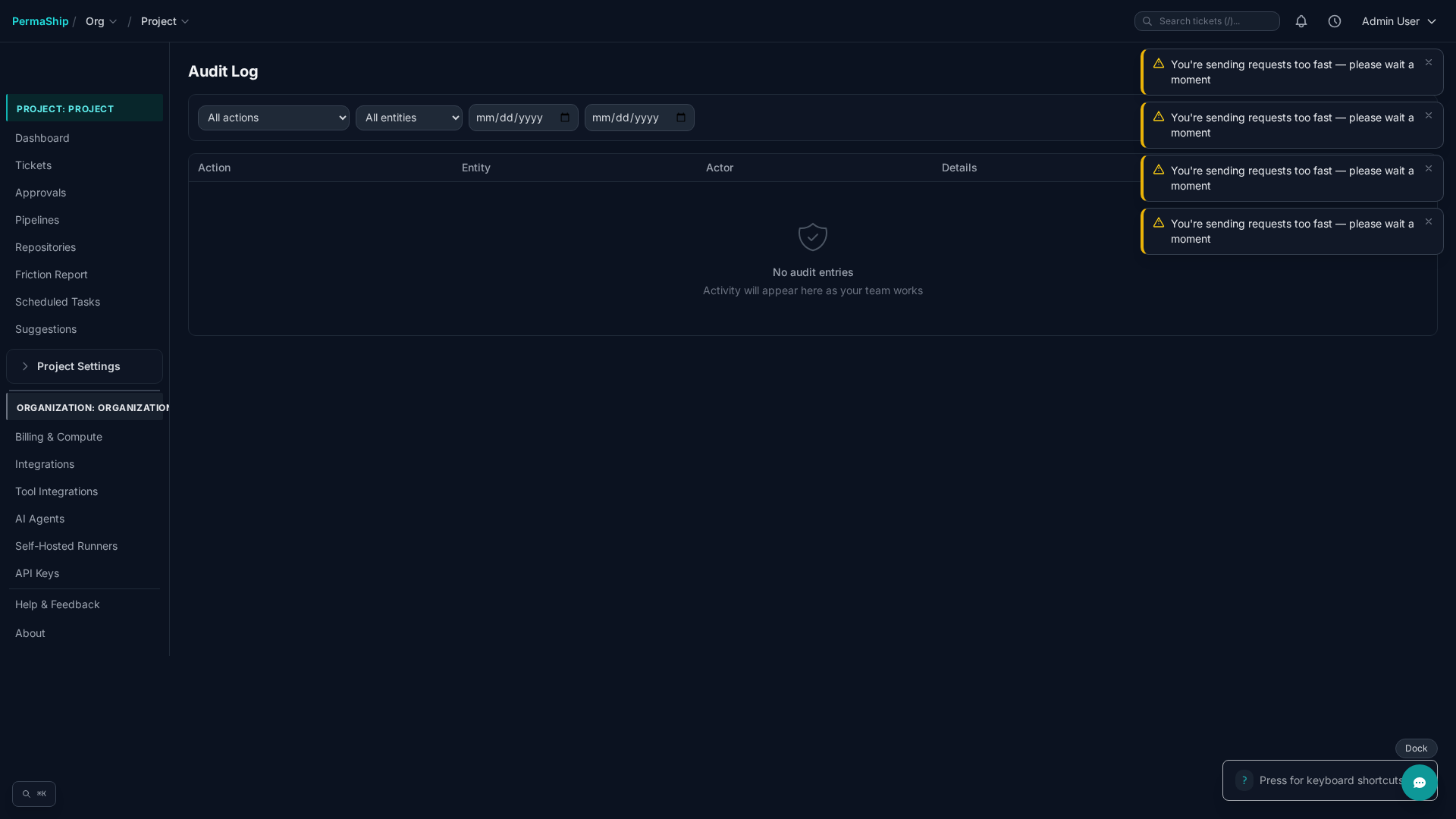
Audit Log
Track all changes across your organization. See who did what, and when. Results are paginated at 50 entries per page.
Filter by action (e.g. ticket.created, member.invited), entity type, or date range.
| Category | Actions |
|---|---|
| Tickets | created, failed, retried, deleted |
| Human Requests | resolved, expired |
| Members | invited, role_changed, removed |
| Projects | created, updated |
| Settings | updated |
| Step Configs | updated |
| Pipelines | created, updated |
| Approval Policies | created, updated |
| Repos | connected, disconnected |
| Secrets | created, deleted |
| Scheduled Tasks | created, updated, deleted |
| Integrations | connected, disconnected |
Billing & Usage
The Billing page shows your organization's current usage across the following metrics:
| Metric | Description |
|---|---|
| Tickets | Monthly count vs limit |
| Tokens | Usage vs monthly budget |
| Seats | Members vs max seats |
| Repos | Connected repos vs max |
| Concurrent Jobs | Running vs concurrency limit |
Managing Your Subscription
Upgrade or change plans (Free, Starter, Team, Enterprise) via Stripe. Click Manage billing to update payment methods and view invoices.
Data Export & Account Deletion
Export your full organization data as JSON (secrets are excluded from the export). To delete your organization, initiate the process from the Billing page — a 30-day grace period applies before permanent deletion.