Integrations
Connect your chat platforms, git providers, and external tools so PermaShip can receive work, post updates, and ship code on your behalf.
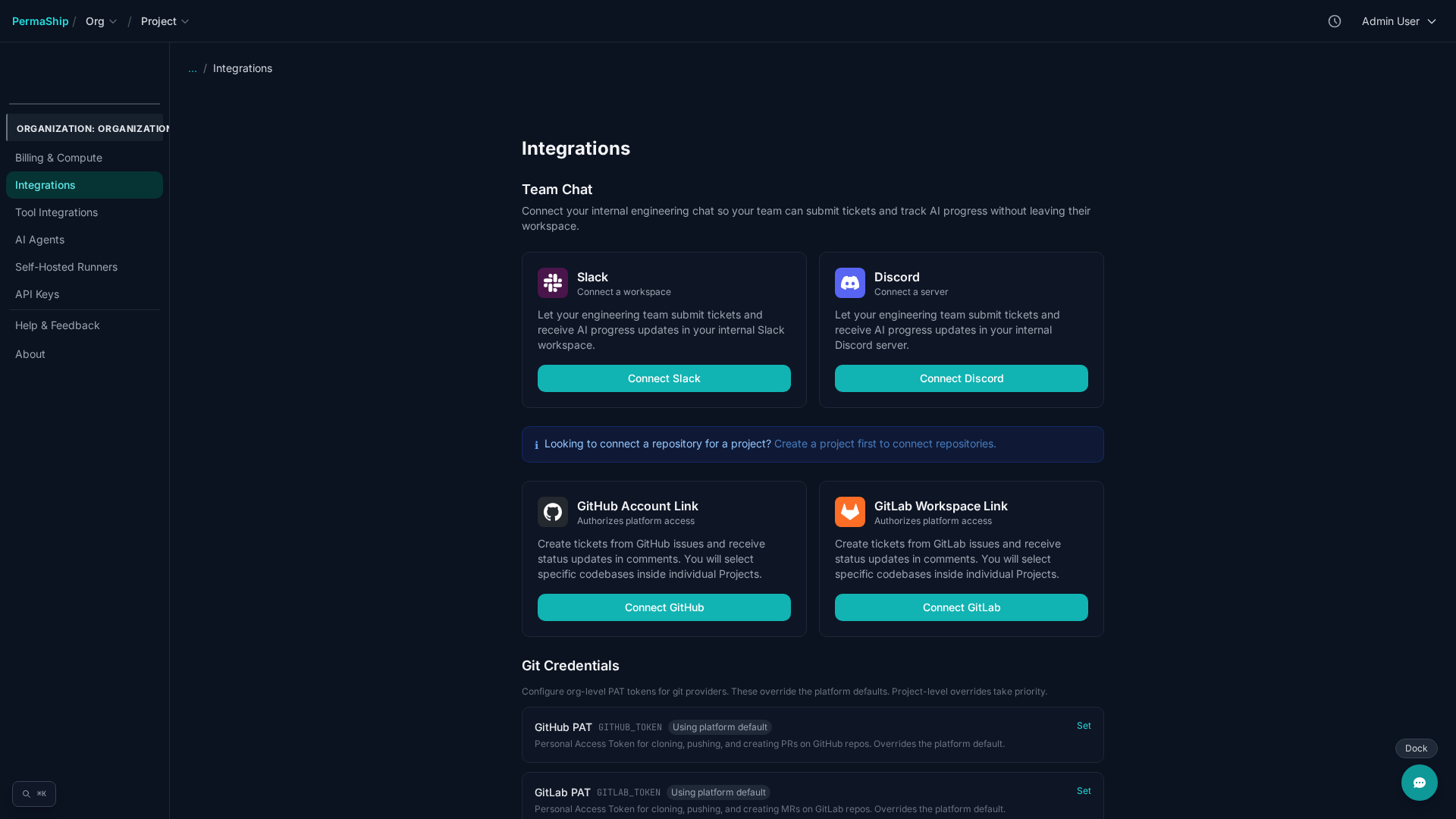
Connect Slack
1 Authorize — Navigate to Integrations > Connect Slack, complete the OAuth flow, and click Allow to grant PermaShip access to your workspace.
2
Configure channels — Invite the PermaShip bot to the channels you want it in, then assign a role to each channel with /permaship channel <role>.
| Role | Description |
|---|---|
| bugs | Receive messages about bug-related tickets and CI failures |
| features | Receive messages about feature requests and enhancements |
| all | Receive all ticket activity regardless of kind |
| announcements | High-level summaries only (merged PRs, deploys) |
Example commands:
/permaship channel bugs
/permaship channel features
/permaship channel all
Creating Tickets from Slack
Messages posted in an intake channel are automatically converted into tickets. The first 100 characters become the title and the full message becomes the description.
You can also create a ticket explicitly with /permaship create, which opens a modal where
you can set kind, priority, and other fields.
Live Updates & Threads
PermaShip posts pipeline progress as threaded replies on the original message. Any reply you post in the thread is forwarded to the running pipeline as human feedback.
Interactive Approvals
When a ticket needs human approval, PermaShip posts an interactive message with Approve & Push and Reject & Feedback buttons. You can approve directly from Slack without opening the dashboard.
All Commands
/permaship link        # Link the current channel to a project
/permaship create      # Open the ticket creation modal
/permaship channel     # Assign a role to this channel
/permaship status      # Show connection & channel status
/permaship disconnect  # Remove the Slack integration
Tip: Use a public #channel for announcements so non-technical stakeholders can follow progress without needing dashboard access.
Manual Setup
For self-hosted deployments, you can skip the OAuth flow and connect directly with an API key:
/permaship setup <api_key>Generate an API key under Settings > API Keys.
Connect Discord
1 Authorize — Go to Integrations > Connect Discord, select your server, and click Authorize.
2
Configure channels — Run /permaship channel <role> in each channel. You need the Manage Server permission.
Channel roles are the same as Slack: bugs, features, all, and
announcements.
Important: Intake channels (channels that create tickets from messages) must be forum channels. Standard text channels are supported only for notifications.
Creating Tickets on Discord
Create a new forum post in an intake channel and PermaShip will convert it to a ticket
automatically. Alternatively, use the /ship slash command to open the creation form.
Live Updates & Interactive Approvals
Pipeline progress is posted as thread replies on the forum post. When approval is needed, PermaShip sends an interactive message with Approve & Push and Reject & Feedback buttons.
All Commands
/link                  # Link the current server to a project
/ship                  # Open the ticket creation form
/permaship channel     # Assign a role to this channel
/permaship status      # Show connection & channel status
/permaship disconnect  # Remove the Discord integration
Connect GitHub
1 OAuth — Go to Integrations > Connect GitHub and authorize. We recommend installing the GitHub App for fine-grained permissions.
2 Add repositories — Head to the Repos page and add the repositories you want PermaShip to work with.
Required Permissions
If you use a fine-grained Personal Access Token instead of the GitHub App, grant these repository permissions:
| Permission | Access |
|---|---|
| Contents | Read & Write |
| Pull requests | Read & Write |
| Checks | Read |
| Actions | Read |
| Metadata | Read |
For a classic PAT, enable the repo and read:checks scopes.
Set your PAT under Settings > Git Credentials.
Connect GitLab
1 OAuth — Go to Integrations > Connect GitLab and click Authorize.
2 Add repositories — Head to the Repos page and add your GitLab projects.
Required Permissions
Grant the following scopes to your GitLab token:
api— full API access for creating merge requests, reading pipelines, and managing branchesread_repository— clone and fetch repository contents
If you use a Project Access Token, assign it the Maintainer role so it can push branches and manage merge requests.
Tool Integrations
Connect external services such as Sentry, Jira, and Linear to give PermaShip richer context about errors, issues, and project status.
Org-Level Connections
Open the sidebar and navigate to Tool Integrations. From there you can connect providers organized by category (error tracking, project management, etc.). Org-level connections are available to all projects in your workspace.
Project-Level Access
Within a project, click Add Integration to grant access to an org-level connection. Configure each tool with the following options:
- Access mode —
Read OnlyorRead + Write - Pipeline steps — which steps (triage, plan, implement) can use the tool
- Require approval for writes — force a human approval before the agent writes data back to the external service