Automation
Schedule recurring work, define custom execution pipelines, and fine-tune how each step behaves.
Scheduled Tasks
Scheduled tasks let you create tickets on a recurring cron schedule. This is useful for routine maintenance, periodic audits, dependency updates, or any work that repeats on a cadence. Click New Task to create one.
| Field | Description |
|---|---|
| Task name | Identifier for the schedule |
| Kind | Ticket kind (task, feature, bug, etc.) |
| Title & Description | Content for the created tickets |
| Cron expression | Standard cron syntax, validated live with a next-run preview |
| Timezone | Timezone the schedule runs in |
| Idle only | Only runs when no other jobs are active |

Task Cards
Each scheduled task appears as a card showing:
- Name and enabled/disabled status
- Health —
HealthyorOverdue - Cron expression and next run countdown
Available actions on each task card:
- Run Now — Trigger the task immediately, outside the schedule.
- Enable / Disable — Toggle whether the schedule is active.
- Edit — Modify any field in the task configuration.
- Delete — Permanently remove the scheduled task.
Pipelines
Pipelines define the sequence of steps a ticket goes through during execution. The default pipeline is plan → conductor → push, but you can create custom pipelines tailored to different workflows.
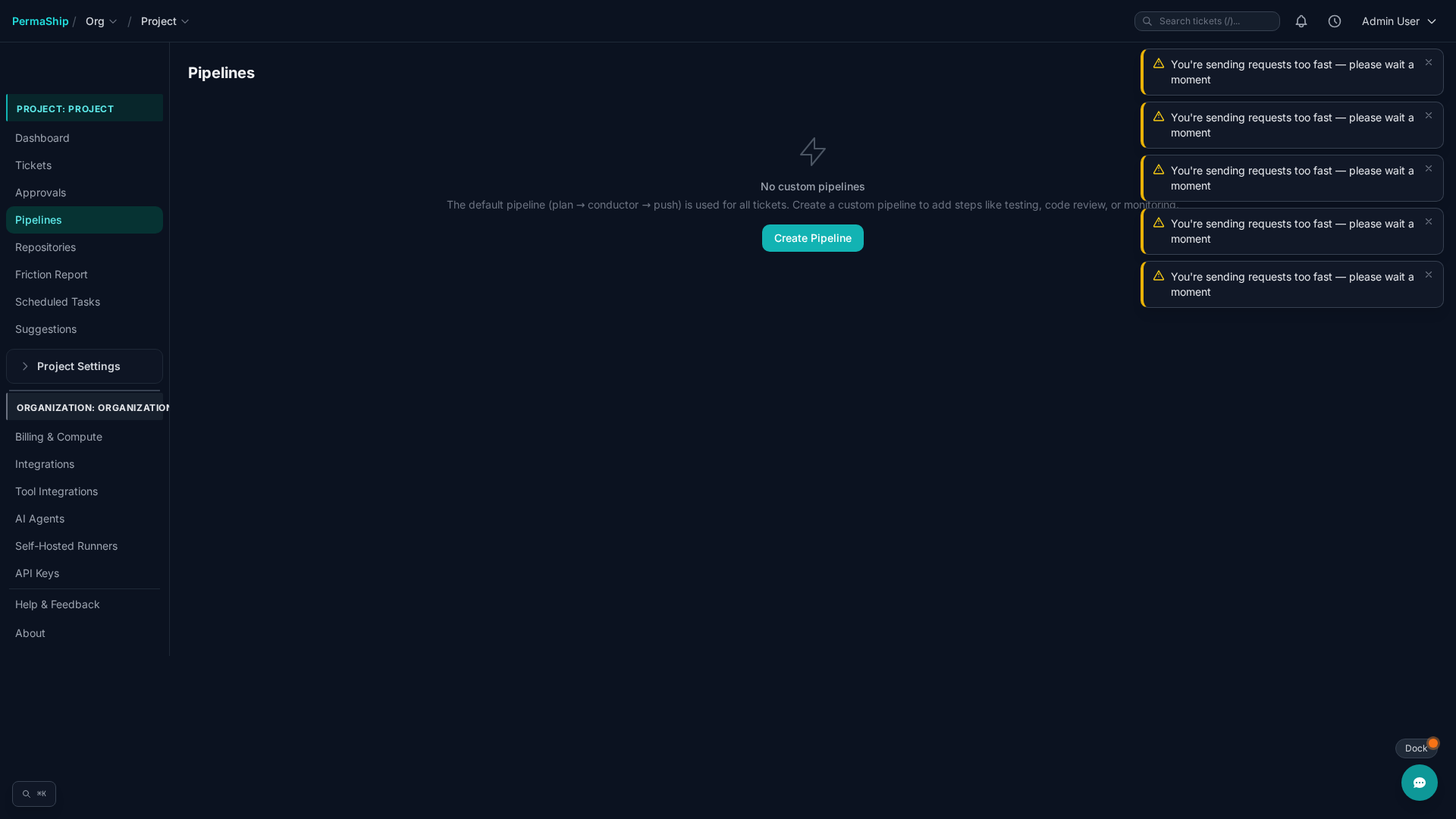
Click New Pipeline to create one. Give it a name, configure the steps, and optionally set it as the default pipeline for the project.
Step Configuration
Each step in a pipeline has the following options:
| Option | Description |
|---|---|
| Step type | The action to perform: plan, conductor, push, implement, local_checks, write_tests, ci_fix, review_code, refactor, monitor |
| Model (optional) | Override the AI model used for this step |
| Fresh session | Start a new session instead of resuming previous context |
| Conditions | Only run this step when conditions are met: has_tests, min_files_changed, has_label |
Use the arrow buttons to reorder steps within a pipeline. Add conditions to a step with the +if button. Each step card can be edited or deleted individually.
Step Configs (Subagents)
Step configs let you control how each pipeline step behaves at a granular level. The overview shows all step types alongside their 30-day statistics: total runs, success rate, and average duration.
Click any step to expand its configuration panel:
- Prompt template — The system prompt sent to the AI for this step.
- Max turns — Maximum number of tool-use turns the agent can take.
- Allowed tools — Which tools the agent has access to during this step.
Editing a Step Config
When editing a step config, you can modify:
| Field | Description |
|---|---|
| Prompt | Custom prompt template for the step |
| Max Turns | Maximum number of agent turns before the step stops |
| Allowed Tools | Comma-separated list of tools the agent can use |
Additional actions:
- Disable — Skip this step entirely when it appears in a pipeline.
- Remove Override — Revert to the system default configuration for this step type.